Hacker News.
Directly in your terminal.
A modern, blazing fast, and minimalist client. Built in Go with Bubble Tea & Lip Gloss. Features intuitive Vim navigation, mouse-wheel scrolling, and seamless w3m/Vim writing integration.
go install github.com/aeon022/hn-client@latest 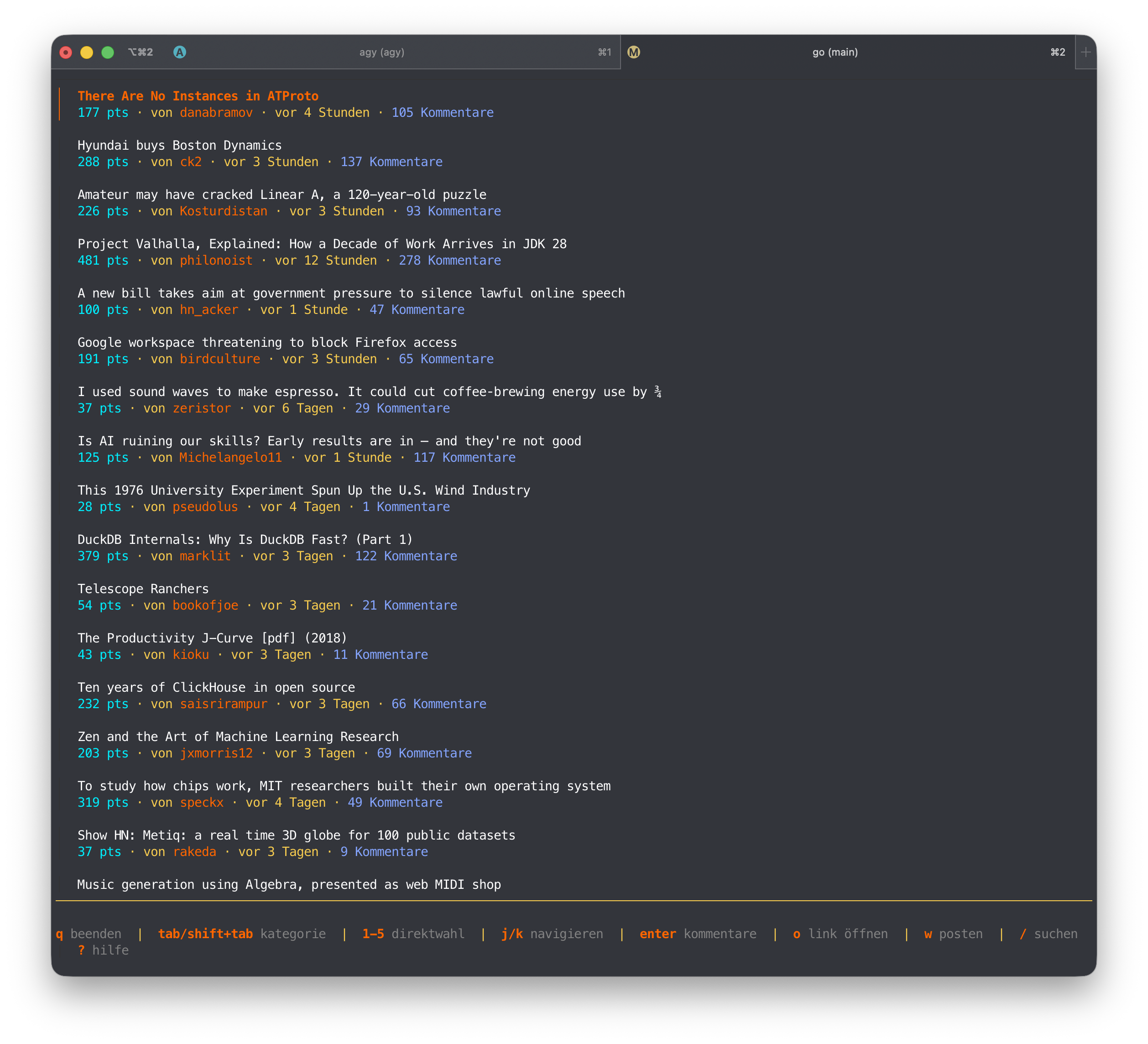
Try the TUI in your browser
Click on the categories inside the simulator to switch Hacker News feeds in real time.
Designed for Terminal-Lovers
Zero bloat. Only maximum efficiency when reading, searching, and submitting to Hacker News.
Vim-Style Navigation
Navigate lists naturally with j and k keys. Jump straight to feed categories instantly using number hotkeys 1-5.
Visual Read History
Previously visited stories are automatically dimmed in the TUI and tagged with a checkmark, persisted securely in your local .hn-history.json.
Color-Coded Comment Trees
Deeply nested comment trees render with color-coded sidebar lines corresponding to their depth. Follow complex conversations effortlessly.
w3m & Vim Integration
Press w (post) or r (reply) to launch w3m. Write posts directly using your system's Vim/Neovim configuration.
Instant Search Filtering
Press / to filter the active story list in real time by title or author. Clear the active search immediately by pressing x.
Mouse-Wheel Support
No need to abandon the mouse. The terminal client supports seamless scrolling inside lists and comment threads using the mouse scroll-wheel.
Offline Bookmarks
Press s to download and save any story + comments locally to ~/.hn-bookmarks.json. Read them offline under feed tab 7.
Thread Link Extractor
Press u to scan comments and display all extracted links in a popup selection modal. Navigate with j/k and open with Enter.
HN Profiles & Alerts
Press U to view user profile summaries in a popover window. Background checking alerts you (🔔) instantly on new comment replies.
Terminal Keybindings Reference
Fully navigable without touching the mouse. Command the entire interface with rapid keystrokes.
Learn Go Level by Level
Follow the roadmap steps to build the Hacker News terminal client from scratch. Click a level to view code and concepts.
Level 1: Booting the TUI Kernel
In Go, executable programs are compiled from a source entry point located inside package main. The execution runtime automatically invokes the func main() function when the binary starts.
To build our terminal UI, we import Charm's Bubble Tea library. We initialize our application instance using tea.NewProgram(). By passing the tea.WithAltScreen() option, Go instructs the terminal emulator to open a separate screen buffer. This suspends your shell session, hides previous commands, and gives the TUI control over the entire window dimensions. Upon quitting, it cleanly restores the shell state.
package main

import (
	"fmt"
	"os"
	tea "github.com/charmbracelet/bubbletea"
)

func main() {
	p := tea.NewProgram(initialModel(), tea.WithAltScreen())
	if _, err := p.Run(); err != nil {
		fmt.Printf("Error: %v\n", err)
		os.Exit(1)
	}
}
Architecture & System Integrations
Understand how hn-client interfaces with Go backend frameworks, terminal APIs, and local configurations.
Data Flow & Lifecycle
Retrieves real-time JSON payloads using official Hacker News endpoints via HTTP clients.
Bubble Tea's Elm architecture engine processes raw payloads, while Lip Gloss builds terminal graphics layouts dynamically.
Reading history (viewed stories) is securely saved in ~/.hn-history.json, enabling persistent checkmarks and dimming.
Launches w3m for interactive forms or launches the system's default browser with spoofed headers when opening URLs.
Technical Specifications
~/.hn-history.json (Read History Tracker) editor /usr/local/bin/nvim in your local ~/.w3m/config. This allows full Neovim text entry when writing replies directly inside the w3m HN reply box.
Quickstart & Installation
The only requirement is a working Go toolchain (Version 1.21 or higher) installed on your system.
Install the binary directly into your $GOPATH/bin using the official Go toolchain:
go install github.com/aeon022/hn-client@latestClone the repository and build the executable file manually on your system:
git clone https://github.com/aeon022/hn-client.git
cd hn-client
go build -o hn-client main.go
Frequently Asked Questions
Common questions regarding the installation, security, and usage of the Hacker News terminal client.
Using hn-client offers a highly focused, distraction-free environment. Without heavy web assets, layouts compile in milliseconds. You navigate instantly using Vim bindings, read comments, search feeds, and write entries using your own shell config.
When you attempt to write a post (w) or comment reply (r), hn-client invokes the terminal web browser w3m. Inside w3m's text area fields, hitting Enter automatically launches your system's default editor (e.g., Neovim or Vim) inside w3m, allowing you to write your replies in a full editor before submitting.
No, the client does not save or transmit any usernames or passwords. All login credentials and cookies are securely isolated within your terminal web browser (w3m) using standard secure cookie directories. hn-client is completely open source and handles zero authentication logic locally.
Yes. The client searches your system's $PATH and attempts to launch terminal web browsers in order of preference: w3m first, and then lynx. If neither terminal browser is installed, it falls back to opening the standard GUI web browser of your system.
Read history and viewed checkmarks are stored locally in a single file inside your home directory: ~/.hn-history.json. You can easily back up, delete, or inspect this file manually at any time.